
Publishing & Scheduling
Scheduling posts
How scheduling works: time slots, when an account's phone is free, captions, and what the statuses mean.
Once a video is approved, you schedule it to an account and Pamba posts it from a real device at the chosen time.
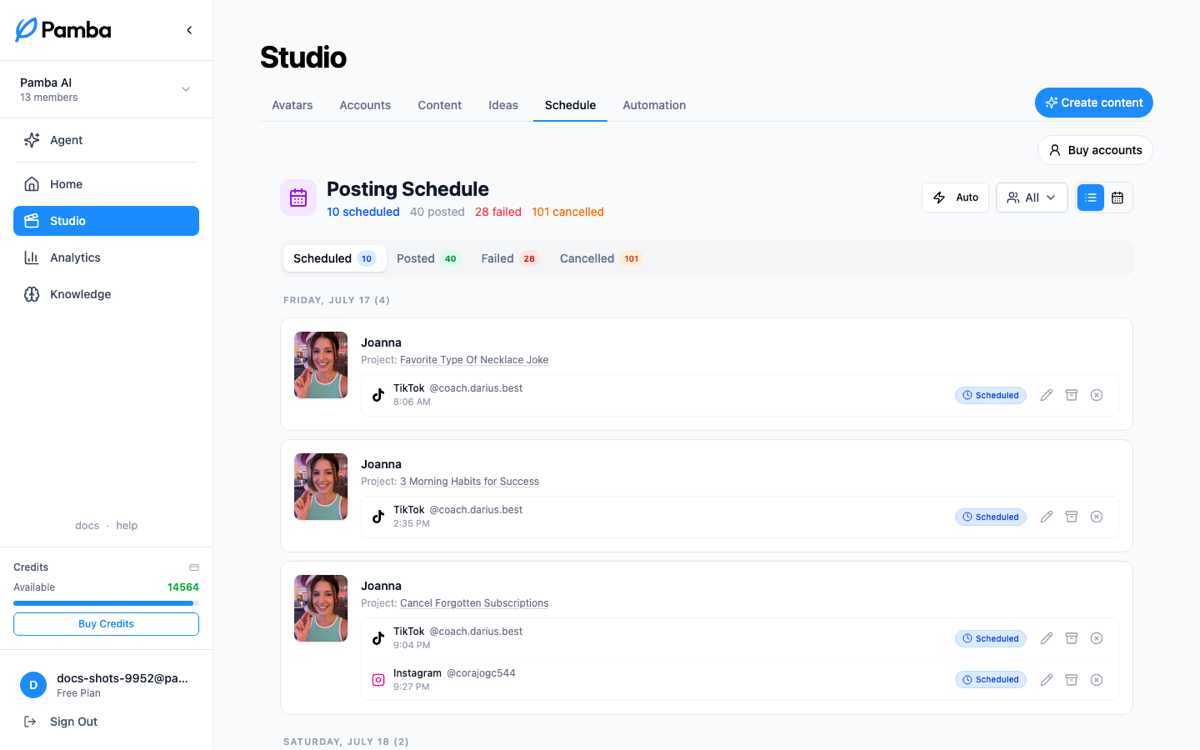
Scheduling a post
From a project (or by asking the agent), pick the account, set the caption, and choose a time, or pick just a day and let Pamba choose a free time on it. Posts publish through physical phones, so time on a phone is real capacity:
- •A phone does one thing at a time for every account on it (an avatar's TikTok and Instagram accounts usually share one), and each post holds its phone for a little over 20 minutes.
- •An exact TikTok time that overlaps another post, a task running on the phone, or a maintenance window is refused, and the message names the next free time. Nothing is scheduled until you pick again.
- •An exact Instagram time in the same spot moves to the next free time that day, and the scheduled post shows the time it got; if the rest of that day is full, it's refused with the next free time.
- •TikTok and Instagram together: when both accounts share a phone, the Instagram post takes the first free time after the TikTok one (right after it when the phone is free). Leave room after your TikTok time: if the day has none left for the Instagram post, neither is scheduled.
- •A day without a time gets a free time on that day (the next day if too little of it is left); if the phone's day is full, it's refused with the next free time.
- •An exact time for a new post must be at least 30 minutes ahead; a sooner one gets the earliest free time after that on the same day, or is refused with the next free time.
- •"That day" is the day in Pacific time.
Seeing when an account's phone is free
Before you pick an exact time, you can check which times the account's phone has free:
- •Ask the agent: "when is @youraccount's phone free tomorrow afternoon?" It reads the account's schedule and suggests times that will be kept exactly as picked.
- •From your own tools: the API route
GET /devices/accounts/scheduleand the MCP toolget_account_schedulereturn the account's openings (the times a post can start and be kept as picked) and what holds the phone in between: other posts on the phone, tasks running on it, and maintenance. See MCP server for how an agent should use it.
Openings are a snapshot, not a booking: another schedule can take a time before yours lands. And on rare occasions, when too many posts across Pamba's phones are set for the same moment, a time inside an opening can still be refused, again with the next free time.
Post statuses
- •Pending: scheduled, waiting for its time.
- •In progress: a device is posting it right now.
- •Posted: live on the platform; analytics start tracking it.
- •Failed: something stopped it (see When a post fails); you can edit, re-approve if needed, and retry.
- •Cancelled: you called it off; the slot was freed.
Editing a scheduled post
Pending posts can be rescheduled, recaptioned, or moved to a different account. Failed posts can be edited too, but their new time is picked automatically when you hit Retry.
Cross-posting
Instagram mirrors can go out alongside TikTok posts, and an Instagram post can share to a linked Facebook account. Mirrors follow their primary post: reschedule the TikTok and the mirrors move with it; retry a failed group and the whole set revives together.